Setting Up Bluetooth Thermal Printing on Android, Step by Step
The full Bluetooth thermal printer setup for Android, in order — plus what to check if nothing prints the first time.
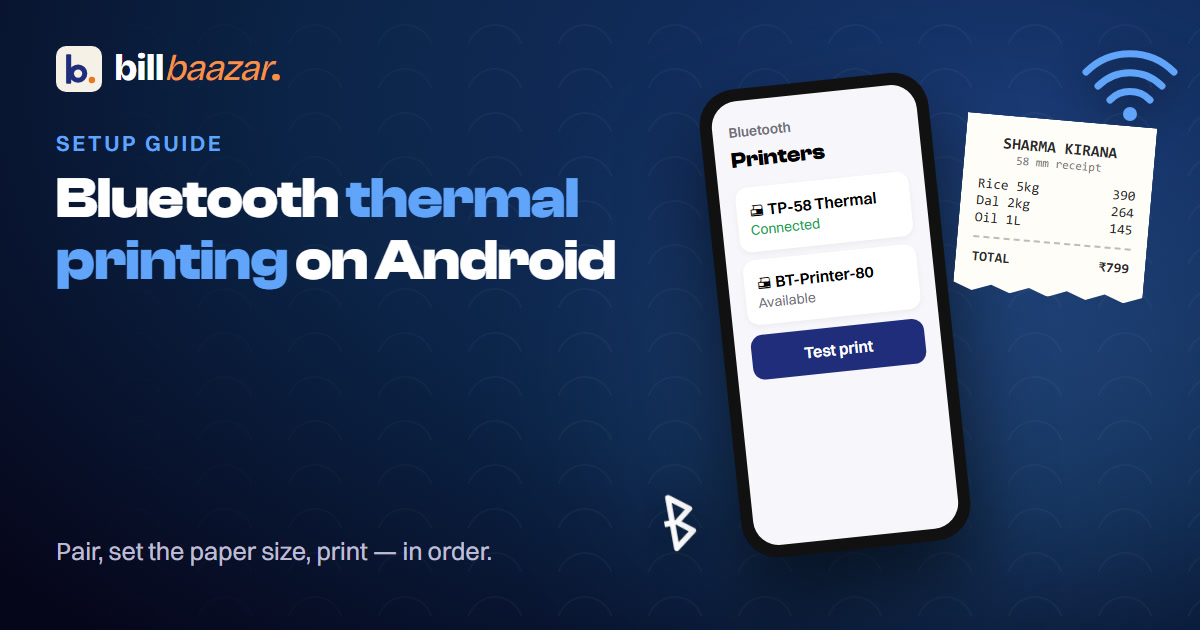
Setting up a Bluetooth thermal printer on Android takes longer to explain than to actually do. Here's the whole process, in order.
What you need before you start
- An Android phone or tablet with Bluetooth turned on.
- A Bluetooth thermal receipt printer (2-inch, 3-inch or 4-inch — all work the same way).
- The free BillBaazar Printer app, installed from the Play Store.
Step 1: Pair the printer with your phone
Turn the printer on, then open your phone's Bluetooth settings and pair it the normal way — most thermal printers show up with a name like their model number. If it asks for a PIN, try 0000 or 1234; both are common defaults on receipt printers.
Step 2: Open the BillBaazar Printer app once
The BillBaazar Printer app needs to see the printer at least once to register it. Open the app after pairing, select your printer from the list, and confirm. This is a one-time step — you won't need to open this app manually again after today.
Step 3: Set your receipt width in BillBaazar
In BillBaazar, go to Settings → Invoice & Printing and choose your printer's paper width — 2-inch, 3-inch or 4-inch. This controls how the bill is formatted, not just how wide the paper is; get it wrong and item names or totals can wrap oddly.
Step 4: Print a test bill
Create any bill and choose Print. Android should offer the BillBaazar Printer app as a print option — select it, and the receipt should come out formatted for the width you set. If nothing happens, the most common cause is Step 2 being skipped, not a printer fault.
If it doesn't work the first time
- Nothing prints at all: re-check that the printer is actually paired in your phone's Bluetooth settings, not just powered on.
- Text is cut off or wrapped oddly: the paper-width setting in BillBaazar doesn't match the printer's actual size.
- It worked once, then stopped: some printers disconnect from Bluetooth after being idle — turn it off and on again and it should re-pair automatically.
After setup
This is genuinely a one-time process. Once paired and configured, printing a bill is a single tap from the billing screen, the same as it would be on dedicated POS hardware.
See BillBaazar's thermal printing setup in detail, or get help from a real person if your printer is being unusually stubborn.
Try BillBaazar in your shop
Free for 15 days, no card needed. We'll move your customer list across for you.
Keep reading
Ready to close the notebook?
Set up your shop in ten minutes. Free for 15 days, no card, and we'll move your customer list across for you.